macOS
Made for your Mac
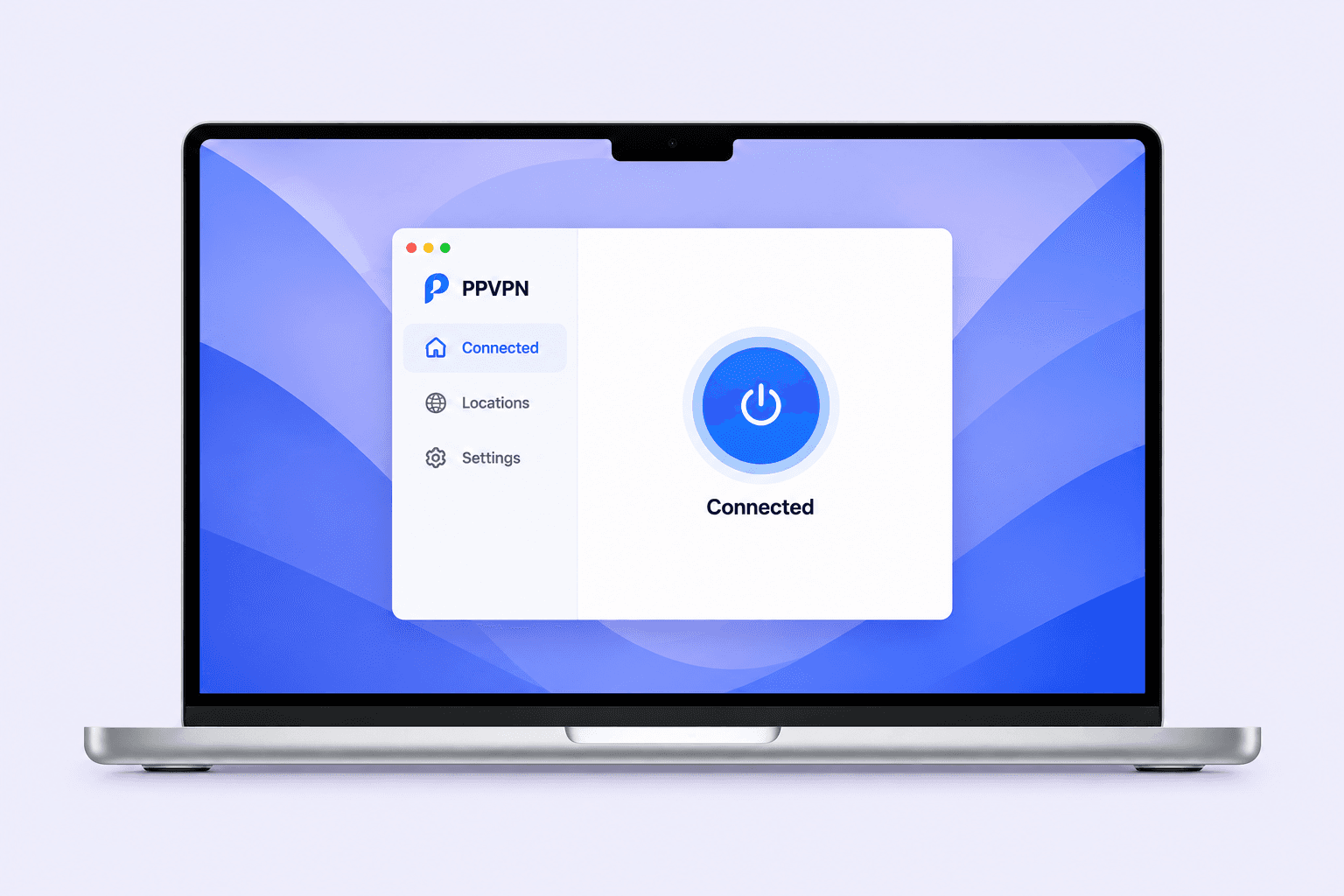
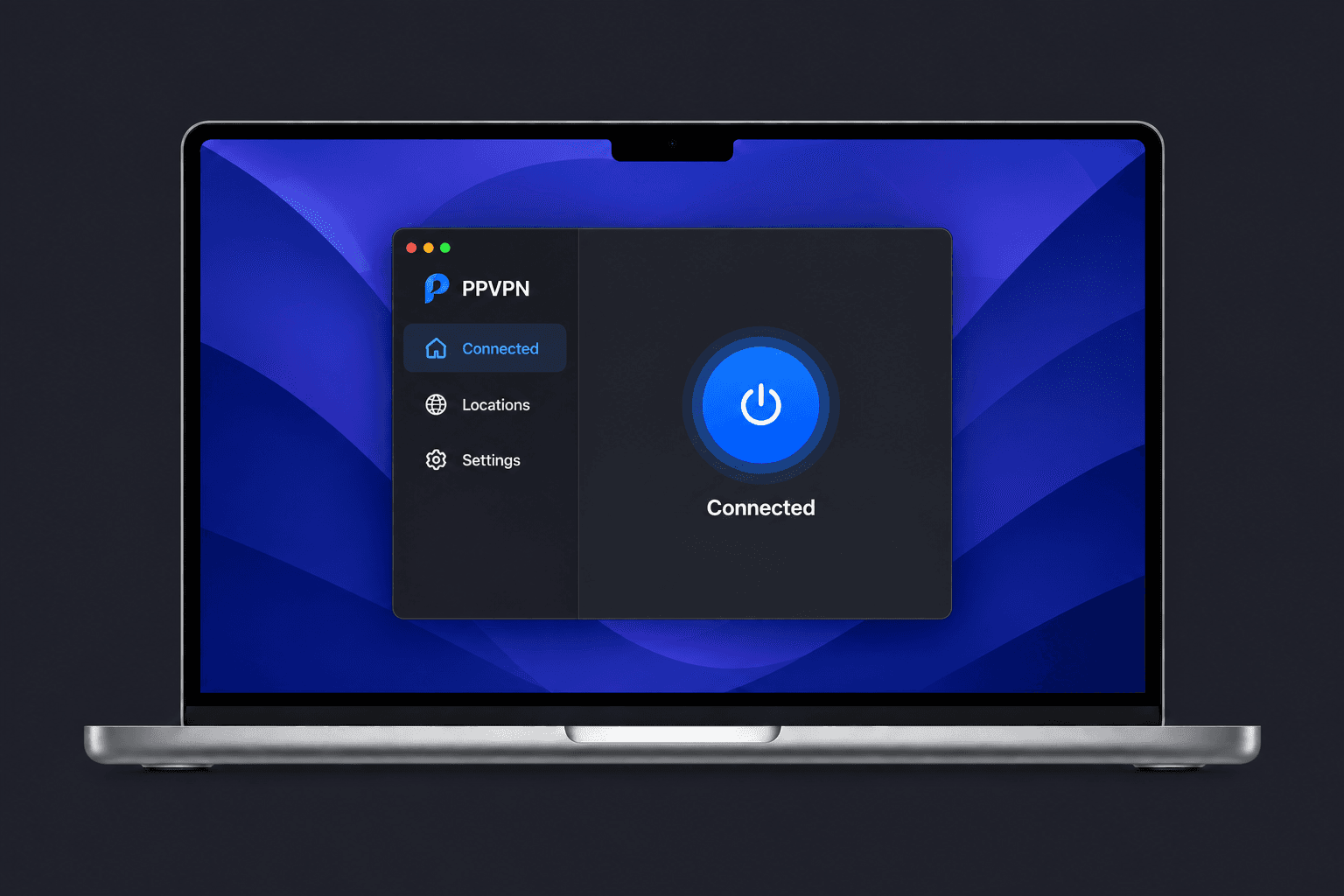
This version is not available to download yet. Please check back later.
A bigger world, right from your desktop.
Made for your Mac
This version is not available to download yet. Please check back later.
Connect with ease on Windows
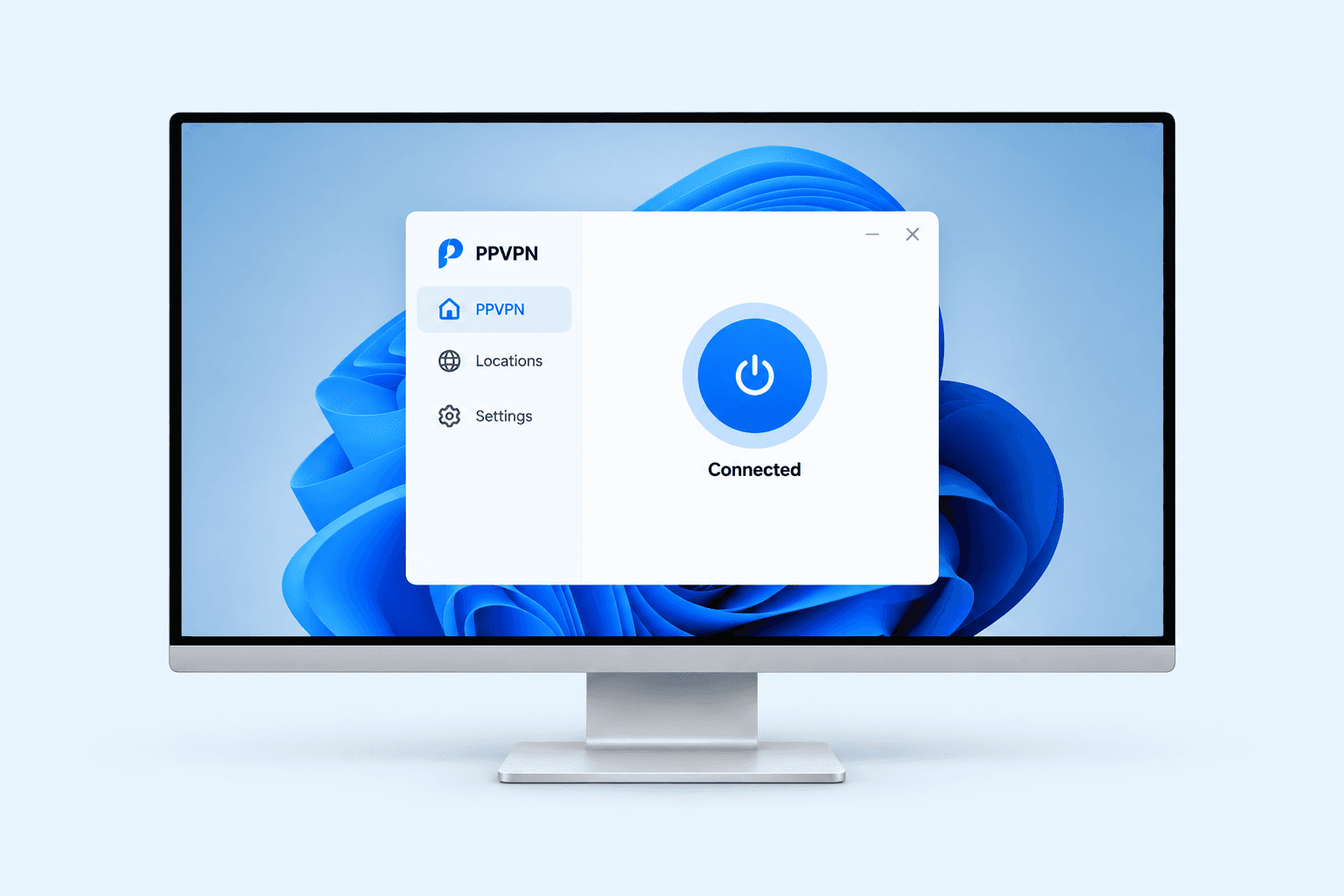
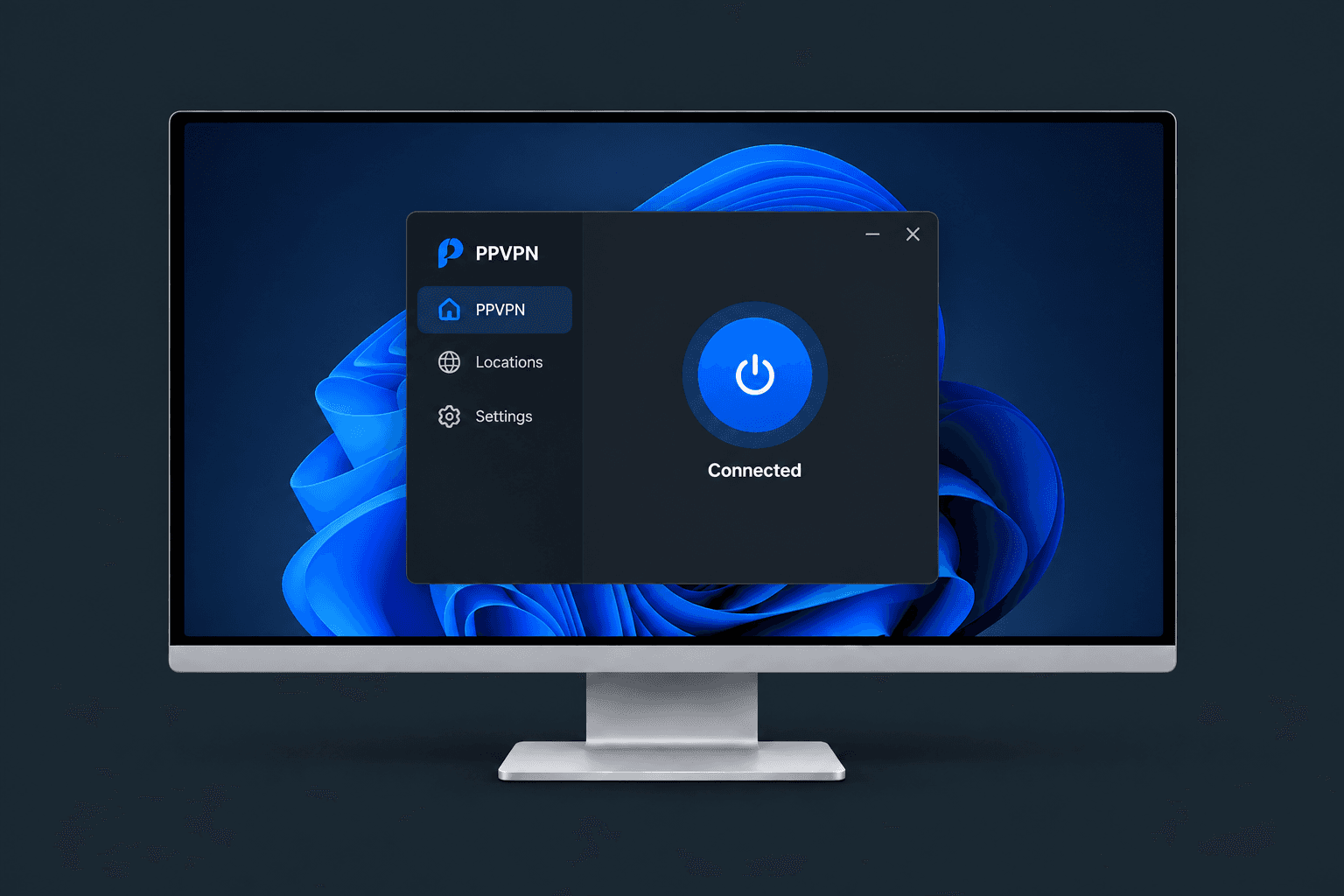
This version is not available to download yet. Please check back later.
Open the Apple menu → About This Mac → look for Chip or Processor. Choose Apple Silicon for M1, M2, M3, M4 and newer chips; choose Intel Mac when it says Intel.
Desktop app · concept illustration
Choose your system and follow the installation guide.
Download the .dmg for your Mac’s chip, then double-click it.
Drag PPVPN into Applications, then open it from there.
Sign in, import your subscription, and connect to a location.